Authorisation
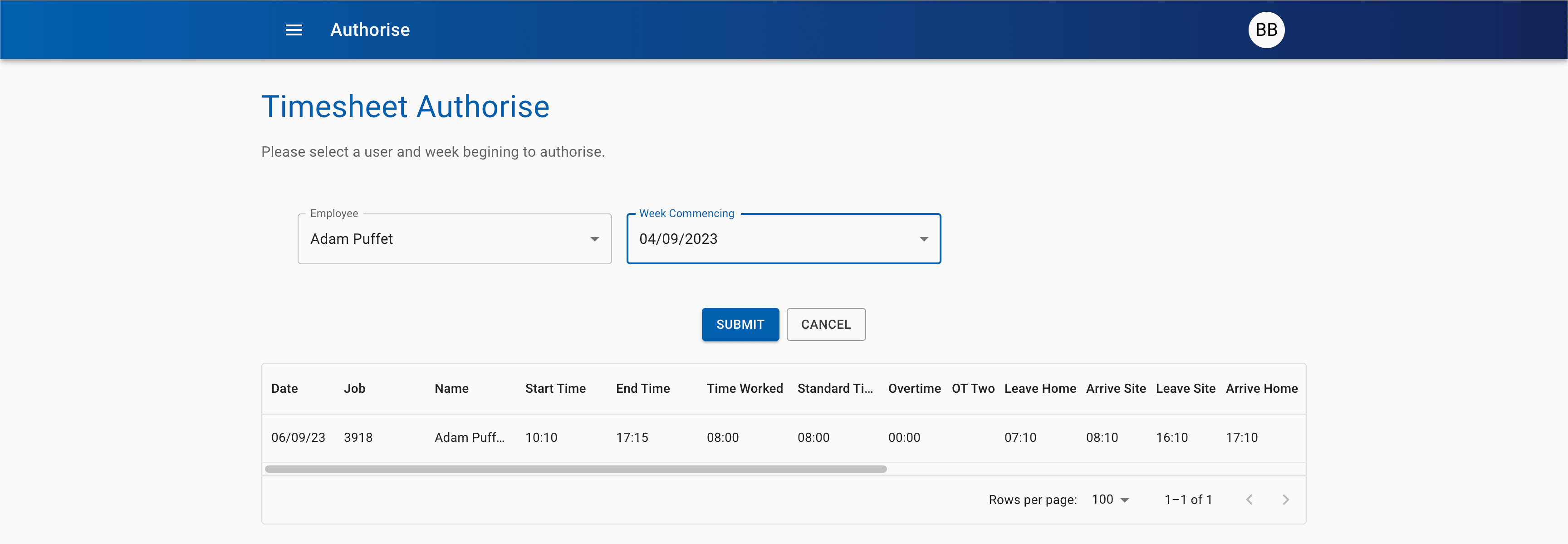
The authorise page, pictured below, displays a dropdown menu of all employees who have worked for your department with timesheets to authorise.
A link to this page will only be present in the navigation menu if you have authorisation permissions!
Select an employee and then the date field will be populated. Clicking in this field allows you to select the date for the week you would like to authorise. You will only be able to select dates with timesheets to authorise. After selecting both an employee and date, the table will be populated at the bottom of the page.
All fields, apart from the date and bottom row can be edited. To edit the row scroll to the far right and click the pen icon. This will allow you to edit all the fields apart from the id. Please ensure you keep the formatting exactly the same when editing. Once you are done scroll to the far right and click the save button to save the edit. You can also click the cross to cancel the edit.
Additionally, if the data is completely wrong, the row can be deleted by clicking the bin icon at the end of the row. The user can the resubmit the day correctly.
When you are happy with the information, click the Submit button.